


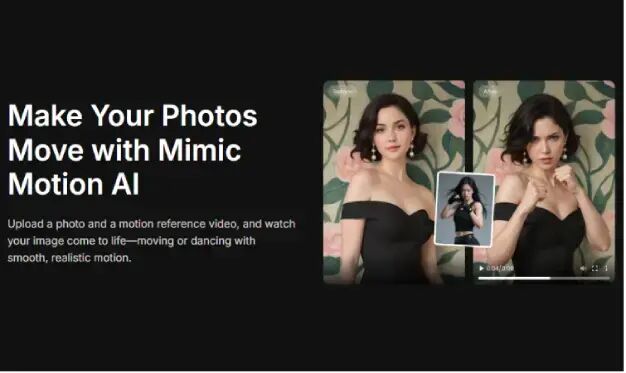
If you create short videos, social media content, or character-based posts, one common problem is this: you have a good image, but you do not know how to make it move. Traditional animation takes time, motion capture equipment is expensive, and editing frame by frame is too hard for most beginners. That is why mimic motion is useful. It lets you turn a still image into a moving video in a much easier way.
This tutorial has one clear goal: help you understand how mimic motion works, how to use it step by step, and how to get better results. After reading, you will know what Mimic Motion AI can do, how to prepare your files, how to make a simple example video, and how to improve the final output.
What Is Mimic Motion AI?
mimic motion is a tool that transfers motion from one video to another character or image. You upload a motion reference video, then upload a target image, and the tool makes the character in the image follow the movement in the video.
mimic motion can be used in several ways.
1. Make still images move
This is the most common use. You can turn a photo, pet picture, or character drawing into a moving video.
2. Copy dance or social media actions
If you want to make dance clips, trend videos, or fun short content, mimic motion can transfer the body movement from a reference video to your own character image. This is one of the most popular uses of Mimic Motion AI.
3. Create action-style video scenes
You can also use AI Motion Capture for running, posing, waving, fighting moves, or cinematic body actions. This is useful for character promotion, creative ads, or story-based visual content.
4. Animate 2D or 3D characters
If you are an artist, VTuber creator, or indie game maker, AI Mimic Motion can help you apply real human movement to anime characters, illustrated figures, or game avatars.
Step-by-Step Mimic Motion Tutorial
To use mimic motion well, the most important thing is not just clicking the generate button. The real key is preparing the right materials and following the correct order.
Step 1: Prepare a motion reference video
First, choose a clear motion video. The quality of this video strongly affects the quality of the final mimic motion result.
Follow these rules:
- Use a video with one main person.
- The full body or at least the upper body should stay visible.
- The background should be simple.
- Avoid heavy blocking, crowd scenes, or fast camera cuts.
- For your first try, use a short clip of about 3 to 8 seconds.
If you want to test dance-style mimic motion, it is best to use a front-facing video where the arms and legs can be seen clearly. AI Motion Capture works better when the body movement is easy to track.
A simple waving, turning, nodding, or arm-swinging clip is a good place to start. Do not begin with very hard dance moves or fast spins.
Step 2: Choose a good target image
Many users get poor mimic motion results because the image is not suitable. A better image gives better motion transfer.
A good target image should have:
- A clear subject
- Full body or at least complete arms and legs
- A front-facing or near front-facing pose
- Good lighting
- Little blur
- Only one character if possible
If you use Mimic Motion AI with a real person photo, choose a natural standing pose. If you use an anime or illustrated character, choose an image with clear body shape and visible limbs. The clearer the image, the more stable the mimic motion result will be.
Step 3: Upload the video and image
After entering the tool page, follow the normal order:
- Upload the motion reference video.
- Upload the target character image.
- Check that both files look correct.
- Click the generate button.
- Wait for the tool to process the motion transfer.
- Preview the result.
This step is simple, but file matching is very important. For example, if your reference video has large full-body dance movement but your target image is only a half-body portrait, the mimic motion result may look strange. The body structure and motion style should match.
Step 4: Review the result carefully
After the first generation, do not publish the video right away. Check these four points:
- Does the face stay consistent?
- Do the body movements look smooth?
- Do the hands and legs look normal?
- Does the movement match the timing of the original video?
If the body looks twisted or the movement feels unstable, it usually means the video and image are not a good match. In that case, it is often better to change the source materials than to generate the same set again.
Example: Make a Character Dance Video with Mimic Motion
Here is a simple example that you can follow.
Goal: turn one anime character image into a 5-second dance video for social media.
Step 1: Prepare the files
Use:
- one 5-second dance video with a person facing forward
- one full-body anime character PNG with a simple background
The dance video should include clear arm, leg, and shoulder movement. The character image should show the full figure clearly.
Step 2: Upload to Mimic Motion AI
Upload the dance video first, then upload the anime character image. Make sure the character is not cut off and the body shape is easy to see.
Step 3: Generate the first version
Click generate and wait for the result. In the first output, focus on whether the motion fits the character naturally. If the anime character has very long legs or unusual proportions, and the reference person has a very different body type, AI Mimic Motion may look slightly off.
Step 4: Improve and export
If the first version is mostly good but some actions look too big or too fast, choose a simpler motion clip and try again. Once the result looks better, export the final video and add music, captions, or effects if needed.
Tips to Get Better Mimic Motion Results
Tip 1: Start with simple actions
Do not start with difficult choreography. For beginners, simple motion works best. Try waving, walking, nodding, or basic arm movement first. mimic motion usually performs better on clear and easy actions.
Tip 2: Match the image to the motion
If your image is only upper body, do not use a full-body dance reference. If your character is side-facing, do not begin with a front-facing jumping motion. mimic motion works best when the structure of the image matches the structure of the action.
Tip 3: Use clean single-person videos
Crowded videos, busy backgrounds, or fast edits make AI Motion Capture less accurate. A clean clip with one person is usually the best choice.
Tip 4: Test short clips first
Before making a long video, test with a 3 to 5 second sample. This saves time and helps you see quickly if the materials are working well together.
Tip 5: Check face consistency first
Many users only look at the body motion, but face stability is just as important. A good AI Mimic Motion result should keep the character identity clear while the body moves.
Summary
To use mimic motion well, remember this simple workflow:
choose a clear motion video, choose a clear character image, upload both files, generate the result, check body and face quality, and improve the materials if needed.
mimic motion is more than just a fun photo animation tool. It is a practical AI Motion Transfer Tool that makes animation and motion effects easier for normal creators. Instead of using complex software or expensive equipment, you can create moving character videos in a much simpler way. For social media creators, artists, marketers, and anime content makers, Mimic Motion AI is a very useful tool to learn.
FAQ
Q1: Why does my mimic motion result look unnatural?
The most common reasons are fast movement, blocked body parts, or poor matching between the reference video and the target image. Try a simpler motion clip and a clearer full-body image.
Q2: Is Mimic Motion AI better for real photos or anime characters?
It can work for both. Real photos need clear lighting and natural poses. Anime characters need clear outlines and full visible body structure. In both cases, mimic motion works best with one subject and a clean image.
Q3: Can I use any video as a motion reference?
You can try, but not every video gives good results. For better AI Motion Capture, use videos with clear body movement, one visible subject, and a simple background.
Q4: What is the best first project for beginners?
A simple standing wave, head movement, or easy dance clip is the best place to start. These are the easiest ways to test how mimic motion works.
Q5: Do I still need editing after generation?
If you want to post the result on social media, some extra editing is helpful. You can add music, subtitles, a cover image, or timing adjustments. mimic motion helps create the movement, while editing helps improve the final presentation.