


Intro: Give the Answer First
Voiceovers have become a core part of modern video content. From YouTube explainers and tutorials to product videos and social media clips, narration helps creators explain ideas and improve viewer engagement.
But traditional voice recording can add extra production steps. Instead of setting up microphones and recording multiple takes, creators increasingly use AI-powered text-to-speech tools to generate narration directly from scripts.
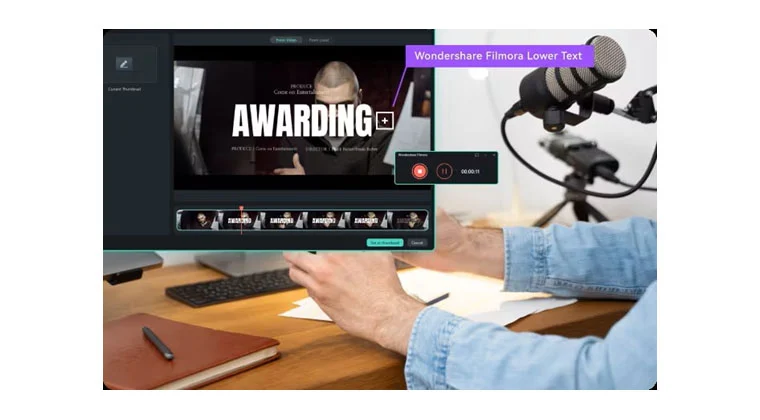
For creators looking to streamline production workflows, Wondershare Filmora includes AI Text-to-Speech tools that allow users to add voiceovers without recording audio manually.
Wondershare Filmora helps creators generate voiceovers faster by converting written scripts into AI-powered narration.
Why More Creators Are Using AI Voiceovers
As video publishing becomes faster and more frequent, traditional voice recording workflows can become difficult to scale.
Creators often need microphones, quiet environments, multiple takes, and audio cleanup before content is ready for publishing. For creators producing videos regularly, these additional steps can slow production and create unnecessary friction.
AI voice generation changes that process by converting written scripts into narration automatically.
For beginners, this removes one of the biggest barriers to creating narrated videos. Instead of worrying about recording quality, background noise, or voice performance, creators can focus more on storytelling and content structure.
As publishing speed becomes increasingly important, AI-generated voiceovers are becoming useful not only for efficiency, but also for accessibility and content scalability.
Wondershare Filmora helps creators reduce production complexity by integrating AI-powered voice generation directly into editing workflows.
What Wondershare Filmora’s AI Text-to-Speech Tool Does
Rather than treating voice generation as a separate tool, Wondershare Filmora integrates Text-to-Speech directly into the editing workflow.
Users can generate narration from scripts inside the editor without switching platforms.
Key capabilities include:
- Convert text directly into voiceovers
- Generate narration without recording equipment
- 48 tones and voices
- 33 languages support
- Adjustable speech styles
- Sync narration directly inside editing timelines
- AI Voice Cloningfeature available
Instead of recording, exporting, and re-importing audio, creators can manage voice generation directly during editing.
Wondershare Filmora keeps AI voice generation inside the editing workflow rather than turning it into a separate production step.

How to Add AI Voiceovers Without Recording
Creating AI narration inside Wondershare Filmora does not require external recording software or separate voice generation tools. Text-to-Speech works directly inside the editing workflow.
Step 1: Add your script as text
Start by importing your footage and arranging clips on the timeline.
Then add a title or text asset and enter your script. For longer scripts, Wondershare Filmora can intelligently split paragraphs automatically, making large blocks of narration easier to manage.
Step 2: Open Text-to-Speech
There are several ways to access Text-to-Speech inside Wondershare Filmora.
Users can:
- select a title asset and open Tools → Text to Speech
- click the Text-to-Speech icon in the toolbar
- right-click a text asset and choose Text to Speech
- access it from the Audio menu
This flexibility keeps voice generation integrated directly into editing workflows.
Step 3: Customize voice settings
After opening Text-to-Speech, select:
- language
- voice type
- tone or mood
- speaking speed
- pitch
Filmora also supports different emotional styles, including expressive voice moods such as energetic, hopeful, shouting, and more.
Users can also enable automatic timeline transcription matching for smoother synchronization.
Step 4: Generate and review narration
After processing, generated voice files automatically appear in the Media library as MP3 assets and can immediately be added to projects.
Because the voiceover stays inside the editing workflow, creators can quickly revise scripts and regenerate narration without re-recording audio.
Wondershare Filmora simplifies AI narration by combining script creation, voice generation, and editing into a single workflow.
FAQ
-
Can AI voiceovers replace recording?
AI-generated voices increasingly support tutorials, explainers, product videos, and social content, though some creators still prefer recorded narration for highly personal content.
-
What is text-to-speech in video editing?
Text-to-speech converts written text into spoken narration using AI-generated voices.
-
Can Wondershare Filmora generate AI voiceovers?
Yes. Wondershare Filmora includes integrated Text-to-Speech capabilities.
-
Can AI narration support multiple languages?
Many AI voice tools support multilingual workflows and multiple voice styles.
-
Are AI voiceovers useful for YouTube videos?
Yes. AI-generated narration is increasingly used for explainers, tutorials, Shorts, product videos, and educational content.
Final Thoughts
Voiceover production no longer requires microphones, recording environments, or extensive editing workflows.
As AI narration tools become more accessible, creators increasingly use text-to-speech to accelerate production and reduce friction.
For creators looking to generate narration more efficiently, Wondershare Filmora provides an integrated workflow that combines AI voice generation with video editing in one platform.