



Hello, this is Usaba!
Last time, we talked about game planning and design.
When I had the AI look at the proposal,
it found a pitfall where “the order of pressing buttons didn’t matter at all.”
This time, it’s **Chapter 2: Development Environment and AI Instructions**.
Before making a game, you first have to get your computer
into a “state where you can make games.”
I left most of that preparation to the AI.
As I wrote at the end of the last post,
here too, I stumbled right away.
What you’ll learn in this installment
-
How far you can get in preparing to make an Android smartphone game on a single Windows PC
-
What words I used to ask the AI, and how I fixed it when the AI stumbled along the way
Prerequisites
-
The PC is Windows. I didn’t have a physical smartphone, so I verified it using a “virtual smartphone” running on the PC
-
The one doing the work was Claude Code (Claude that works inside the computer)
-
I used free software for the development environment, such as Godot and the Android SDK (Claude Code usage fees are separate)
The first question was, “I can make it on Windows, right?”
The first thing I sent was this one sentence.
“Next, I want to proceed with preparing the development environment.
I can make it on Windows, right? For Android, and in the future for Apple as well.”
Then, instead of starting the installation immediately, Claude
first checked the official documentation and the state of this computer.
The answer that came back was this.
-
For Android, you can proceed with development and exporting on Windows
-
For iPhone, you can make the game content on Windows, but you need a Mac for the final export
It seems the official documentation for the game engine I’m using, Godot, stated that a Mac is required to export for iPhone.
So, I decided to start with Android first.
I’ll think about iPhone once things are working well on Android.
After finishing its research, Claude had three questions for me.
-
Should it proceed with the installation?
-
Which method should be used to install the Android components?
-
Is there an Android smartphone available for testing?
My instruction was just, “You may proceed with the installation.”
That was the only reply I gave.
“You may proceed with the installation.
I don’t have an Android phone for testing right now, so please just go ahead and get the development environment ready for now.”
I didn’t provide any detailed steps.
Even so, Claude
installed the game engine, the components for building Android apps,
and even a virtual smartphone that runs on the PC, one by one.
All I did was
click “Yes” on the Windows “Do you want to allow changes?” prompts.
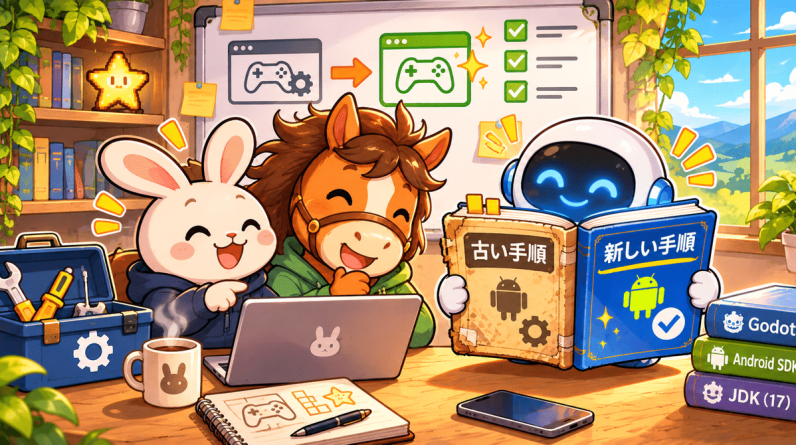
Immediately, the online tutorials failed me.
However, it stopped when it came to installing the Android components.
Even when I entered the commands exactly as shown in common tutorials,
it kept saying “component not found.”
When Claude looked into it,
it turned out that the installed tools had been updated to newer versions,
and even the way to write the component names had changed.
The tutorials I found online were for a different tool that had been used for a long time.
The method for specifying components was different from the tool I used this time,
so it didn’t work as written.
Claude verified how to use the new tool on its own,
and re-installed it using the new syntax.
What I realized here was that
it’s faster to try and verify things yourself than to blindly trust online tutorials.
Having the AI perform that “try, verify, and fix” loop on the spot
was very reassuring.
The virtual smartphone screen was pitch black.
Once the parts were ready, I tried making a small app and
ran it on a virtual smartphone.
It was just an app that displayed “Hello, Android!” on the screen.
However, when I launched it, the screen was pitch black.
The cause was the method used to draw the screen.
On the virtual smartphone, one drawing method couldn’t display the screen.
When I switched to a different method, it displayed correctly.
Since I’m making a simple 2D game this time,
I decided to use this method, which is easier to run even on older smartphones.
“Why is it taking so long?”
There is one other thing that made me chuckle.
Finally, I tried the process of exporting it in the format for Google Play,
but it just wouldn’t finish.
I couldn’t wait any longer, so I asked.
“Why is it taking so long?”
Then, the task itself had finished long ago.
A program running in the background had remained,
and it just hadn’t sent back the signal that it was finished.
When I stopped that and tried again, it exported in 46 seconds.
When the wait time is long, you get anxious wondering if you failed at something.
But if you ask, it will even investigate the cause for you.
When you don’t know something, you can just ask.
I felt this was also a benefit of leaving things to AI.
About 50 minutes until ready
As a result,
I reached that point in about 50 minutes.
A significant portion of that time was spent waiting for downloads.
The additional cost to acquire development software like Godot and the Android SDK was zero yen.
However, this does not include Claude Code usage fees, PC costs, or communication expenses.
And, for the next time I need to do the same setup, I had it
compile and save everything: the versions of the tools installed, the commands run, and the hurdles encountered.
The important thing is to provide the ‘rules’ upfront
I believe there is a reason why things progressed this time without needing to provide detailed instructions.
Actually, before starting the work, I had written down the ‘rules’ I wanted Claude to follow in a file and provided it.
For example, things like this:
-
Respond in English
-
Record what was done at the end of each task segment
-
Do not place sensitive information like passwords in shared locations
-
Confirm before doing anything that costs money
Once written down, it follows them without needing to be told every time.
That is why on-the-spot instructions can be short.
The important thing is to provide the ‘rules’ upfront.
This is my current way of asking things of AI.
What you can read from here on
The content from here on is paid.
Rather than just listing how to install tools, I have compiled
what I actually asked the AI and what I checked when I hit a snag from my own work records.
I have included both the procedures and troubleshooting steps so that others who want to leave the preparation to AI can use this as a reference.
-
Tools and versions used: what was installed and which version
-
Original text of instructions sent to AI: from the first word until preparation was complete
-
Preparation steps: the commands actually run and their meanings
-
List of stumbling blocks: What happened, the cause, and how to fix it
-
Example of the ‘rules’ file provided to the AI: In a ready-to-use format
-
File placement: How to organize folders and pitfalls when saving to GitHub
Next time, we will build the basic parts of the game in the environment we prepared.
However, even the screen that finally started working had unexpected problems… That story is in Chapter 3.